
Affiliate disclosure: Some of the links in this article are affiliate links, including links to Fiverr. If you make a purchase through one of them, The Stackora may earn a small commission at no additional cost to you. We only recommend services that fit the problem being discussed.
If you want to automate business tasks with Zapier and Make.com, you’re probably trying to get rid of a very specific kind of frustration: spending an entire day on tasks that should have taken care of themselves.
A lead comes in through your website, so you copy their details into a spreadsheet. Then you add them to your CRM. Then you send a quick “thanks for reaching out” email. After that, you message a teammate on Slack so they know to follow up.
None of these tasks are particularly difficult. They just take time, and you have to keep doing them over and over again.
You end up acting as the middleman between four different apps, moving information from one to another because they don’t automatically work together.
Multiply that by every form submission, every new customer, every invoice, every support request, and you start to see where entire afternoons go. It’s not one big task eating your time. It’s dozens of small ones, each only a few minutes long, that add up to something closer to a part-time job you never signed up for.
This is what business automation actually solves. It’s not about replacing people or building some elaborate tech stack. Most of the time, it’s about removing the steps that don’t need a human brain attached to them: copying data, sending predictable emails, updating records, notifying the right person. The judgment calls stay with you. The busywork goes to software.
Two tools stand out in this space: Zapier and Make.com. Both let different apps communicate and handle tasks automatically, without you having to write code.
This guide shows you how to automate business tasks with Zapier and Make.com through 15 real-world workflows covering lead management, CRM updates, email follow-up, invoicing, notifications, and AI-assisted tasks.
It also covers something many automation guides overlook: how to tell when a workflow is simple enough to build yourself and when it makes more sense to bring in someone who does this for a living.
What Is Business Automation, Really?
Strip away the buzzwords and business automation is just this: telling software to perform a sequence of actions automatically whenever something specific happens, instead of a person doing it manually.
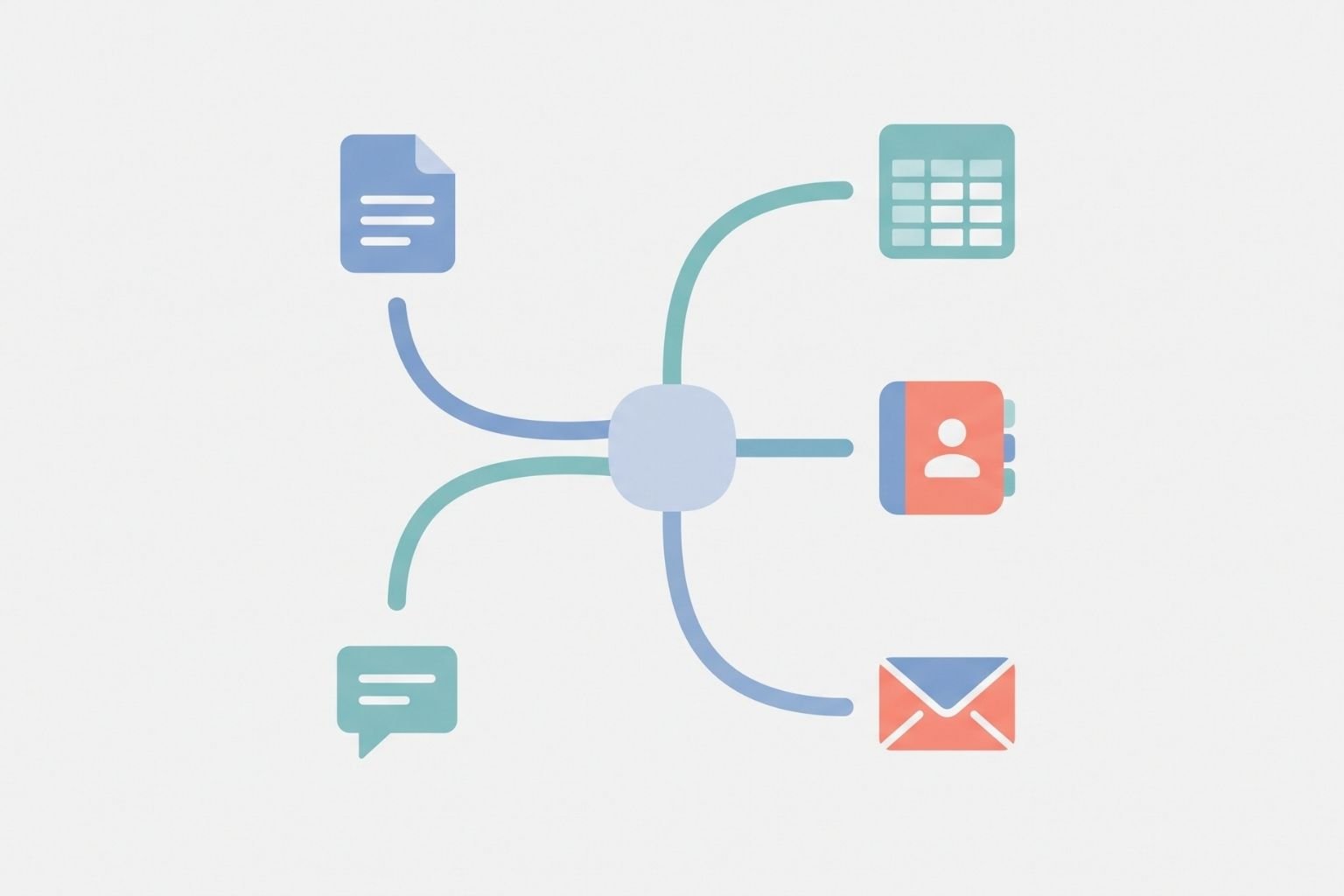
Here’s a concrete example. Someone fills out a contact form on your website. Without automation, you’d typically open the submission, copy the person’s name, email, and message, paste it into a spreadsheet, add them to your CRM, send a confirmation email, and let a teammate know a new lead came in. With automation, all of that can happen the moment the form is submitted, with no one touching a keyboard.

The underlying structure is always some version of trigger, then action, then more actions. A trigger is the event that starts things off (a form gets submitted, a new row is added, a payment comes through). An action is what happens as a result (a record gets created, an email gets sent, a message gets posted).
A single automation can chain several actions together, so one event on your website updates three or four systems in seconds. Everything in this guide is just a variation on trigger and action, applied to the tools your business already uses.
Make.com vs Zapier: Which One Should You Use?
Both platforms let you connect apps and automate tasks without writing code, but they’re built for slightly different kinds of work, and neither one is objectively “better.”
Zapier is built around simplicity. You pick a trigger app, pick an action app, and Zapier walks you through connecting them. For straightforward automations, like “when someone fills out this form, add them to my email list,” it’s about as easy as automation gets, and its linear interface is a good starting point if you’ve never built one before.
Make.com (formerly Integromat) takes a more visual approach: you build workflows on a canvas, connecting modules the way you’d sketch a flowchart. That makes it easier to handle branching logic (do one thing if X is true, another if it isn’t), work with multiple data sources at once, and manipulate data more precisely. The tradeoff is a steeper learning curve.

Here’s how they compare on the things that matter most for a small business:
| Feature | Zapier | Make.com |
|---|---|---|
| Ease of use | Very beginner-friendly | Moderate learning curve |
| Simple workflows (1-2 steps) | Excellent | Good, but arguably more than you need |
| Complex, multi-step workflows | Workable, but can get clunky | Built for this |
| Conditional/branching logic | Available, less intuitive | Native and visual |
| Visual workflow building | Linear list format | Flowchart-style canvas |
| Data manipulation | Basic to moderate | Strong, more granular control |
| App connections | Very large library | Large library, slightly smaller |
| Best suited for | Beginners, single-app-to-app tasks | Multi-step, conditional, data-heavy workflows |
For something simple, one or two apps, one clear outcome, Zapier will probably get you there faster. For workflows with several branches, multiple data sources, or decisions along the way, Make.com is usually the better long-term investment despite the steeper learning curve. Plenty of businesses end up using both, picking whichever fits the specific workflow.
15 Business Automations You Can Build
Each of these is a real workflow small businesses use regularly. For each one, we’ll cover the problem it solves, what the automation looks like in practice, what tools are typically involved, and at what point it tends to outgrow a DIY setup.
1. Automatically Send Website Leads to Your CRM
The problem: Someone fills out a contact or quote request form, and that information needs to end up in your CRM so your sales process actually starts.
What it does: The moment a form is submitted, the lead’s details are pulled and a new contact or deal is created in your CRM automatically.
Example setup: A form on your website (built with something like Typeform, Gravity Forms, or a native website builder) connects to a CRM such as HubSpot, Salesforce, Pipedrive, or Airtable.
This eliminates the gap between “someone showed interest” and “someone can follow up with them,” which is often where leads quietly go cold.
The basic version, new form submission creates a new CRM contact, is easy to set up yourself. It gets more involved when you want leads routed by condition: different reps by territory, different pipelines by service type, different sequences by budget. Layer enough conditions on and testing every branch by hand starts eating real time.
If your CRM needs that kind of conditional routing, and a wrongly-routed lead means a missed sale, it’s worth having someone who builds these regularly set it up and stress-test it. A CRM automation specialist on Fiverr can usually build and test that logic faster than you can troubleshoot it yourself, since they’ve already hit the edge cases.
2. Automatically Save New Leads to Google Sheets
The problem: you want a running record of every lead, but manually adding rows to a spreadsheet is the kind of task that gets skipped when you’re busy.
What it does: every time a new lead comes in, from a form, an ad platform, or another source, a new row is added to a Google Sheet automatically.
This is one of the easiest automations to build, and a great starting point if you’ve never used Zapier or Make.com before. New lead in, new row out, usually takes less than ten minutes to set up.
It gets more complicated when you’re pulling leads from several sources into the same sheet, need formulas that recalculate live, or want the sheet automatically cleaned and de-duplicated. At that point you’re building a lightweight database, not automating a spreadsheet, and a Google Sheets automation specialist can set it up so it stays clean without you babysitting it.
3. Send Automatic Emails After a Form Submission
The problem: People expect some kind of response after submitting a form, but manually sending “thanks, we got your message” emails all day isn’t a good use of your time.
What it does: As soon as a form is submitted, an email goes out automatically, a confirmation, a notification to your team, or an appointment reminder.
Example: Form submission → automatic confirmation email to the customer → automatic internal email or Slack message to your team.
This is one of the automations you almost never need outside help with. A basic autoresponder is what Zapier was built for, and most email platforms even have this built in already.
Save the freelancer budget for something more complex, it’s only when the email logic needs to branch (different emails by service requested, or a multi-step nurture sequence tied to CRM status) that an email automation specialist starts to make sense.
4. Automatically Move Customers Between Business Apps
The problem: A single customer’s information often needs to live in more than one place, your ecommerce platform, your CRM, your email list, maybe a project management tool, and keeping all of them in sync manually is a losing battle.
What it does: When a customer takes an action in one app (places an order, signs a contract, books a call), their information updates automatically across the other systems that need it.
A customer completes a purchase in Shopify → their info is added to your CRM as a customer, not just a lead → they’re added to a “customers” list in your email platform → a task is created in your project management tool if fulfillment requires manual steps.
Simple two-app syncing is manageable to build yourself. Once you’re syncing three or more systems, especially when each one uses different field names for the same information, a workflow automation expert can save you the trial-and-error of figuring out how each app expects its data.
5. Automatically Notify Your Team About New Orders or Leads
The problem: Important events, a new order, a high-value lead, a support request, get missed because no one happened to check the right dashboard at the right time.
What it does: Sends a real-time notification through email, Slack, Microsoft Teams, or another channel the moment something noteworthy happens. New order over $500 comes in → a Slack message is posted in your #sales channel automatically, tagging the account manager.
Notifications like this keep teams responsive without anyone refreshing a dashboard all day. The simple version (new event, one notification) is easy to build. It gets more involved when different notifications need to go to different people based on order size, product type, or urgency, and that’s when a Zapier or Make.com expert can build the rule set once, correctly, instead of you adjusting filters by trial and error.
6. Automate Invoicing and Billing Tasks
The problem: Creating invoices manually for every client or order is repetitive and easy to get wrong when you’re moving fast.
What it does: Automatically generates an invoice, sends a payment reminder, or triggers a billing action based on an event, like a completed project or a new subscription. A deal is marked “won” in your CRM → an invoice is automatically generated in your accounting software and emailed to the client.
A word of caution: automation is great for generating and sending routine paperwork, but financial information deserves human review, especially amounts, tax calculations, and payment terms. Automation should handle the repetitive parts of billing, not replace your oversight of it, so build in a review step or spot-check the outputs regularly.
A business automation specialist adds real value here by connecting invoicing to multiple trigger points (project completion, subscription renewal, milestone payments) reliably, so nothing falls through the cracks and nothing gets billed incorrectly.
7. Connect Your Website to Another Application
The problem: Sometimes the app you need to connect to doesn’t have a ready-made Zapier or Make.com integration, so you need a more direct connection.
What it does: Uses an API, a way for two pieces of software to talk to each other directly, to pass information between your website and another system.
Think of an API as a structured conversation between two apps: one asks a very specific question in a very specific format, and the other answers in that same format. It’s how your website might pull live inventory from a warehouse system, or push order data into custom software your business built in-house.
Example: Your checkout page needs to check real-time inventory from an internal system before confirming an order. That’s an API call happening behind the scenes.
This is where automation stops being purely visual and starts requiring an understanding of how data is structured and authenticated between systems. Zapier and Make.com both offer built-in tools for basic API calls, but debugging a broken connection or mapping complicated fields is genuinely technical work.
If your project involves an API without a pre-built integration, this is one of the clearest cases for bringing in help. An API integration specialist on Fiverr can save you hours of documentation-reading and trial-and-error, especially when authentication requirements or rate limits aren’t obvious from the outside.
8. Automatically Update Google Sheets
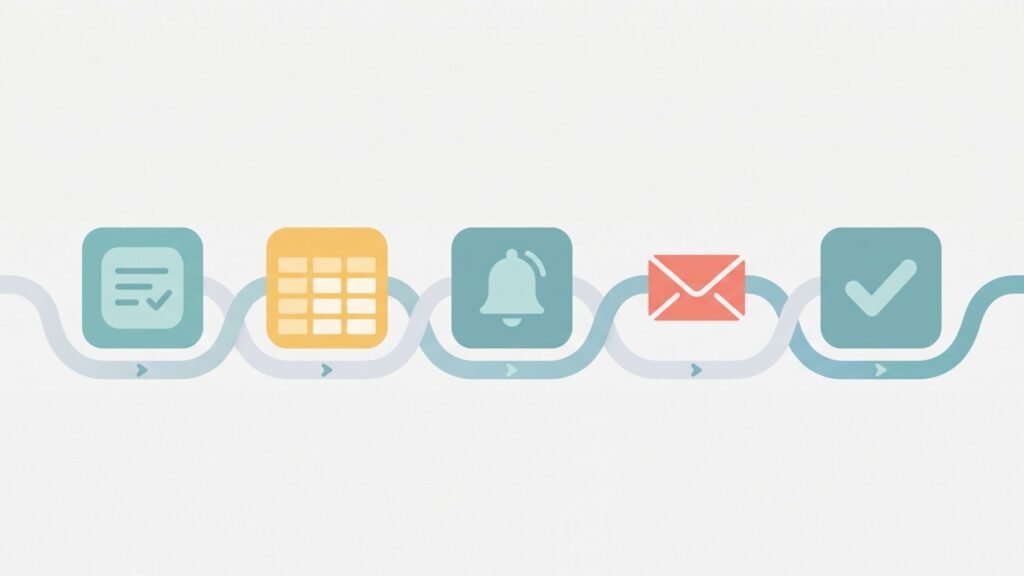
The problem: Beyond just logging leads, a lot of businesses use spreadsheets as a lightweight tracking system for orders, inventory, customer information, or marketing performance, and keeping them updated by hand doesn’t scale.
What it does: Automatically adds, updates, or modifies rows in a Google Sheet whenever relevant data changes elsewhere, a new order, a changed inventory count, an updated customer record, or weekly marketing data compiled into a summary tab.
Single-source spreadsheet updates are easy to automate yourself. Things get complicated when you’re pulling from multiple sources into one sheet, need conditional formatting to update automatically, or rely on formulas that reference cells the automation itself is updating.
A Google Sheets automation specialist is useful once your spreadsheet has become a lightweight database rather than a simple list.
9. Automate Lead Follow-Up
The problem: Follow-up is one of the most valuable things a business can do consistently, and one of the most commonly neglected, because it requires remembering to do it at exactly the right time, over and over.
What it does: Automatically follows up with leads after a set period if no action has been taken. New lead added to CRM → wait two days → if no response, send a follow-up email → if still no response after a week, notify a salesperson to reach out personally.
This “wait and check” logic beats most manual follow-up simply because it doesn’t rely on anyone remembering to do it. Worth saying clearly: automated follow-up should respect applicable email marketing laws and consent requirements, and should never feel like spam. Automating follow-up doesn’t mean automating pestering.
Basic time-delay sequences are buildable in Zapier or Make.com without much trouble. Multi-branch sequences that change based on lead behavior (opened but didn’t click, clicked but didn’t book) require more careful planning, and that’s where a lead-generation or email automation specialist earns their fee.
10. Connect Your CRM to Your Email Marketing Platform
The problem: Your CRM knows who your leads and customers are. Your email platform is what actually reaches them. If the two don’t talk to each other, you end up manually adding and removing people from lists, which is tedious and error-prone.
What it does: Automatically keeps your CRM and email marketing platform in sync based on what’s happening with each contact. A new customer is added to a welcome sequence, a lead marked “qualified” moves into a more sales-focused sequence, and a customer who just purchased gets removed from the promotional emails for that product.
This is where conditional automation really shows its value. Instead of one static list, contacts move between segments automatically based on real behavior, which tends to perform better than blasting everyone the same message regardless of where they are in the process.
A basic sync (new CRM contact → added to one email list) is simple enough to DIY. Multiple conditional triggers moving contacts between several sequences is where a CRM automation specialist becomes useful, both for the build and for making sure contacts don’t end up in two conflicting sequences at once.
11. Automate Repetitive Data Entry
The problem: A lot of “administrative work” is really just the same piece of information being typed into multiple places by hand.
What it does: Eliminates manual re-entry by automatically transferring data between systems whenever it changes in one place, a new employee’s info entered once in an HR system populating payroll and internal directories, or a customer’s updated shipping address flowing straight into your fulfillment software.
Simple field-to-field transfer between two apps is approachable for beginners. It gets complex when data needs reformatting, splitting, combining, or validating along the way, situations where a basic Zapier “zap” isn’t enough and you need Make.com’s more advanced data tools or a small custom script. A workflow automation expert can tell you quickly which situation you’re in.
12. Create Automatic Notifications and Internal Workflows
The problem: Teams waste time checking multiple dashboards just to stay aware of what’s happening in the business.
What it does: Sends internal alerts for events that matter, so people find out immediately instead of stumbling across them later, a new customer signs up, a support ticket is filed, a payment fails, an automation itself breaks (yes, you can and should get notified when your automations stop working), or a task gets marked complete.
This reduces the mental overhead of checking five different systems throughout the day. The simple version, one event, one notification, is easy to build. More advanced internal workflows, where different events trigger different processes automatically, benefit from a workflow automation expert who maps out the whole process before building it, rather than adding pieces one at a time.
13. Automatically Organize Customer Information
The problem: As customer information comes in from different sources, it needs to be categorized and routed correctly, otherwise your CRM turns into a pile of unsorted contacts.
What it does: Automatically tags, categorizes, and routes customer information based on defined rules, new leads tagged by source, existing customers separated from new ones, support requests routed to the right department, hot sales inquiries flagged for immediate follow-up.
Basic tagging rules (if source equals X, apply tag Y) are manageable on your own. Multi-condition tagging, especially when it depends on information buried inside a message rather than a clean form field, gets advanced quickly. That’s a reasonable point to bring in a CRM automation specialist, particularly if inaccurate routing is costing you response time on hot leads.
14. Add AI to Your Business Workflows
The problem: Some tasks aren’t purely mechanical, they involve reading and interpreting text, which used to mean automation couldn’t help much. That’s changed.
What it does: Uses AI within your existing automations to handle tasks that involve understanding language, not just moving data.
Practical examples: summarizing long incoming messages or support tickets, categorizing leads based on the content of their inquiry rather than a dropdown selection, drafting a first-pass response for a team member to review, extracting details like a budget or timeline from a free-text message, classifying requests by urgency, or generating an internal summary of the week’s activity.
This is genuinely useful, and both platforms now offer ways to plug AI models into a workflow. That said, it’s worth being deliberate: AI-generated content and categorizations should still be reviewed for anything that affects a customer relationship or a business decision.
An AI can draft a response, but someone should be looking at it before it goes out, at least until you’ve built confidence in how it performs on your specific data.
Because this combines automation logic with AI prompting, and getting the prompts and safeguards right takes trial and error, it’s one of the areas where an experienced freelancer pays off fastest. An AI automation specialist on Fiverr will already know how to structure prompts that produce consistent output instead of ones that occasionally go off the rails.
15. Build a Multi-Step Business Workflow
The problem: Most of the automations above look simple in isolation. Real businesses usually need several of them working together, and that’s a different level of complexity entirely.
What it does: Chains multiple automations into one connected process that handles a lead or customer from first contact through to follow-up.
A realistic example:
Website form submitted → automation identifies what type of lead it is based on their answers → contact is added to the CRM under the correct category → a new row is added to a tracking spreadsheet → the appropriate email is sent depending on lead type → the sales team is notified through Slack → a follow-up task is automatically created → if there’s no response within a set period, a reminder follow-up goes out automatically.
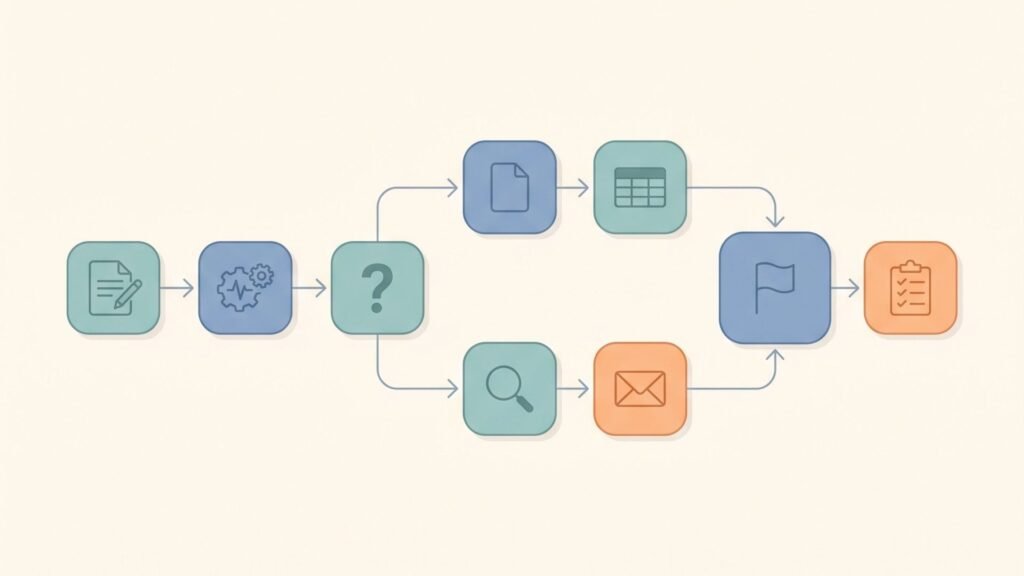
That’s eight connected steps, several apps, at least one branching decision, and a delay-based follow-up. Building this isn’t hard step by step, but it’s unforgiving: a mistake in step two (a lead miscategorized) quietly breaks everything after it, and you might not notice for days.
This is the clearest example in the article of when professional help stops being a luxury and becomes the more efficient option.
A workflow like this benefits from someone experienced in Make.com or Zapier automation, API integrations where needed, CRM logic, webhooks (a way for one app to instantly alert another the moment something happens), and possibly AI if part of the categorization is language-based.
Getting all of that tested and working together correctly the first time is exactly the kind of project worth paying for.
When Should You Automate Something Yourself?
Not every automation needs a professional, and honestly, most small businesses should build their first few automations themselves. It’s the best way to understand what these tools can actually do for you.
DIY makes sense when only two applications are involved, the workflow has just a few steps with no elaborate branching, the data is straightforward (names, emails, simple text fields), you can test it safely without risking customer-facing mistakes, and the process isn’t mission-critical, if it breaks for a day, nothing terrible happens.
Good DIY-friendly examples: a Slack notification on form submission, new leads into a spreadsheet, a simple confirmation email, syncing two apps with official, well-documented integrations. Start here and get comfortable with triggers and actions before attempting anything with branching logic or multiple data sources.
When Is It Worth Hiring an Automation Expert?

There’s a point where DIY automation stops saving you time and starts costing you time. For many people, that point comes after spending three or four hours trying to fix the same broken step.
Here are some signs you may have reached it:
- You’re connecting three or more applications.
- The workflow needs an API or webhook because there isn’t a ready-made integration.
- You’re dealing with conditional logic across multiple scenarios.
- Data needs to be cleaned, formatted, or reshaped as it moves between systems.
- Your CRM has business rules that don’t fit neatly into simple trigger-and-action steps.
- The automation involves sensitive customer information.
- You keep running into errors you can’t figure out.
- The workflow directly affects sales or customer communication.
- You’ve already spent several hours on it without getting a working result.
- You know exactly what you want the automation to do, but you have no idea how to build it.
That last one is worth thinking about.
A lot of business owners aren’t confused about what they need. They’re confused about how to translate what they need into the way automation platforms actually work.
That’s where an experienced freelancer can make a real difference. You’re not paying someone simply to click buttons you could click yourself. You’re paying for experience with similar workflows, the ability to spot potential problems before they happen, and the discipline to test everything properly before the automation starts dealing with real customers.
What Type of Fiverr Freelancer Should You Hire?
Automation freelancers tend to specialize, so matching the right one to your problem makes a real difference in how smoothly the project goes.
| Your Problem | Freelancer to Look For |
|---|---|
| Need a simple Zapier automation | Zapier expert |
| Need a complex Make.com workflow | Make.com automation expert |
| Need your CRM connected to other systems | CRM automation specialist |
| Need applications to communicate through APIs | API integration specialist |
| Need webhook-based, real-time workflows | Webhook/API developer |
| Need automated lead follow-up | Lead-generation automation specialist |
| Need automated, conditional emails | Email automation specialist |
| Need a complex, multi-step business process automated | Workflow automation expert |
| Need Google Sheets processes automated | Google Sheets automation specialist |
| Need AI inside your business workflows | AI automation specialist |
If your project overlaps a couple of these categories, which is common, look for someone whose profile and past work cover both. A freelancer who’s done both CRM automation and API work, for example, is a good fit for something like the multi-step workflow in Automation 15.
How to Choose the Right Automation Freelancer on Fiverr
Once you know what kind of specialist you need, picking the right person takes a bit more than sorting by price.
Look for relevant experience with the specific apps in your workflow, not just automation in general. Someone who’s built dozens of HubSpot integrations will move faster on your HubSpot project than someone who’s mostly worked with a different CRM. Read reviews from similar projects, not just the star rating, and ask to see examples of past work.
Beyond technical skill, pay attention to how clearly they explain the solution back to you. A freelancer who can describe your workflow in plain language usually understands it more deeply than one who can’t.
Ask whether they’ll test with real (or realistic) data before calling it finished, and whether you’ll receive documentation so someone can maintain the automation later without starting from scratch.
Don’t choose based purely on the lowest price. A freelancer who takes the time to understand your actual business process, not just “connect app A to app B”, tends to build something that holds up, which is worth more than a slightly lower quote on a workflow that breaks in a month.
Prefer to Have Someone Build It for You?
If you already know what you want to automate, you don’t necessarily need to spend an entire weekend learning every feature of Make.com or Zapier just to get it working. For more complicated workflows, CRM integrations, API connections, webhooks, multi-step processes, or anything involving AI, hiring someone who does this regularly can be faster and less frustrating than figuring everything out through trial and error.
Fiverr has freelancers who specialize in all of these areas, so the key is finding someone whose experience matches the workflow you need. If you recognized your own situation in one of the “this is where it gets complicated” sections above, this may be a good time to browse automation and integration experts on Fiverr and compare freelancers based on the type of automation you need.
Questions to Ask Before Hiring an Automation Freelancer
Before starting a project, get clear answers to a few questions:
- Have you built this type of workflow before?
- Which specific apps will you be connecting, and have you worked with them?
- Will this rely on APIs or webhooks, and what happens if the API changes?
- How will errors be handled if a step fails partway through?
- Will you test the workflow with real data before it goes live?
- Will I receive documentation explaining how it works?
- Can you explain the workflow in plain terms, not just technical steps?
- What exactly is included in the project, and what counts as an additional request?
- How will you handle any sensitive business or customer information involved?
Straight answers to these before work begins prevent most of the misunderstandings that turn automation projects frustrating.
A Simple Automation Roadmap for Your Business

If you’re not sure where to start, here’s a practical sequence:
Step 1: List your repetitive tasks, copying data, sending the same emails, updating the same records.
Step 2: Estimate how often you do each one. A task you do fifty times a week beats automating one you do twice a month, even if the second one feels more annoying.
Step 3: Identify which apps are involved. Two apps is simple. Four or five is a bigger project.
Step 4: Pick the easiest one to automate first, and build confidence before attempting anything complex.
Step 5: Try building a simple version yourself. Even if you hire someone for bigger projects later, understanding the basics makes for better conversations with freelancers.
Step 6: Test everything before relying on it, with real (or realistic) data, more than once.
Step 7: Bring in an expert when the workflow gets too complicated or important to risk getting wrong. There’s no prize for building everything yourself if it means a customer-facing process breaks silently.
The Bottom Line
Learning to automate business tasks with Zapier and Make.com isn’t really about mastering software. It’s about paying attention to where your time actually goes. The best automation opportunities usually aren’t complicated. They’re the tasks you do over and over again, follow the same steps every time, and don’t require much thought.
Copying a lead into a spreadsheet. Sending the same follow-up email. Updating a record you’ve already updated a hundred times. These are the kinds of repetitive tasks automation handles really well.
You don’t need to automate everything at once, and you don’t need to build everything yourself. Start with the task that wastes your time or annoys you the most. If it involves just a couple of apps, a clear trigger, and one obvious action, you can probably build it yourself in an afternoon.
If it involves several systems, APIs, webhooks, complicated CRM logic, or AI, bringing in someone with experience may save you more time than spending hours trying to figure it out through trial and error.
The goal isn’t to make your entire business run without you. It’s to stop spending your time on the small tasks that don’t really need you in the first place.
And if you’d rather have someone build a workflow for you, Fiverr’s automation freelancers can help with everything from a basic Zapier connection to a more advanced Make.com workflow. You can choose a service based on the type of automation you actually need.
Frequently Asked Questions
Is Zapier or Make.com better for beginners?
Zapier, thanks to its simple, linear setup. Make.com has more capability once you need branching logic or multi-step workflows, but it takes longer to learn.
What business tasks can I automate with Zapier?
Adding leads to a spreadsheet or CRM, sending confirmation emails, posting notifications to Slack or Teams, and syncing contacts between apps, mostly straightforward, single-path workflows.
What can Make.com automate?
Everything Zapier does, plus more complex scenarios involving multiple branches, conditional logic, advanced data transformation, and workflows pulling from several sources at once.
Can I automate my CRM with Zapier or Make.com?
Yes. Both can add contacts, update records, move contacts between segments, and trigger follow-up actions based on CRM changes. More advanced logic, like conditional lead routing, may need more setup work or professional help.
Do I need coding knowledge to use Make.com or Zapier?
No, both use visual, drag-and-drop interfaces. More advanced workflows involving APIs or complex data manipulation benefit from some technical understanding, which is also where a specialist can help.
When should I hire an automation expert?
Generally once you’re connecting three or more apps, need an API or webhook without a ready-made integration, require real conditional logic, or the workflow affects sales, billing, or customer communication in a way that can’t afford to break.
How much does it cost to hire someone to build an automation?
Pricing varies with the complexity of the workflow, the number of apps, whether custom API work is required, and whether ongoing support is included. It’s more useful to request quotes for your specific project than to expect a fixed price.
Can a Fiverr freelancer build a complete business automation?
Many freelancers build these workflows regularly and can handle complete, multi-step automations. The outcome depends on how clearly you define the process and on verifying the freelancer’s experience with your specific apps.
Is business automation safe?
It can be, if you’re thoughtful about it. Pay attention to what permissions each connected app requires, test workflows before relying on them for anything customer-facing, and be selective about which platforms and freelancers you trust with sensitive information.
Looking to go further? Related guides on The Stackora cover building an AI chatbot for customer service, automating email responses with AI, and using AI for lead generation, all of which pair well with the workflows covered here.